
Pick where you're going
Choose your destination and the data plan that fits your trip.
Everything you need to get your Globeelink eSIM working — from purchase to your first connection abroad.
Choose your destination and the data plan that fits your trip.
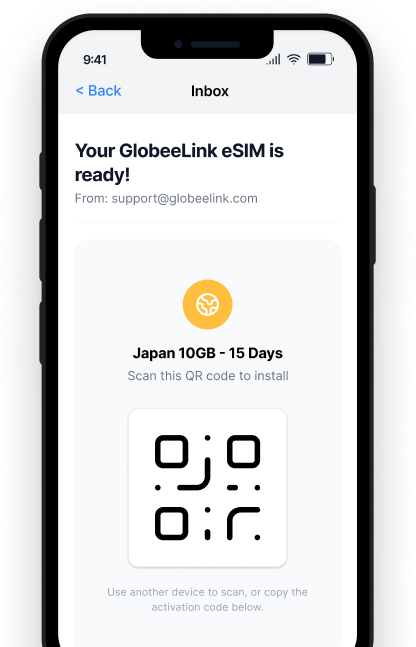
Checkout in seconds. Your eSIM and QR code arrive instantly by email.
Add the eSIM to your phone over Wi-Fi while you're still home.
Switch on your line when you arrive and you're online right away.
Choose how you'd like to install. Most people use the QR code; enter details manually if you're installing on the same phone.
Follow the on-screen instructions to complete this step safely.
On some regions this is called 'Cellular'.
Follow the on-screen instructions to complete this step safely.
Hold your iPhone so the QR code sits inside the frame.
Activation usually takes under a minute over Wi-Fi.
From this point, follow the labelling and default-line steps.
Make sure the code fills the frame and your screen brightness is up. You can also enter the details manually from your email instead.
Connect to a stable Wi-Fi network and try again. Activation needs an internet connection to reach the carrier.
Open Settings > Mobile Service, select the Globeelink line and turn on 'Turn On This Line' and Data Roaming.
An amber status dot means the line is installed but not yet active. Toggle the line on once you've landed at your destination.
Data starts the moment you switch the line on at your destination — not before, so no data is wasted.
Keep receiving calls and texts on your usual number while data runs on Globeelink.
Set Globeelink as your data line and browse on your plan's allowance abroad.
Track usage, top up, and view all your eSIMs anytime in your Globeelink account.
Quick answers to the most common questions. Still stuck? GlobeeBot can help in seconds.
Most phones from 2018 onward support eSIM — including all recent iPhones, Samsung Galaxy from S20, Google Pixel from Pixel 4, and most other recent Android phones. Check your device settings any time.
No. Fair, set fee. What you take out is your connection stop — we never store charges in your account.
Message GlobeeBot or our team via WhatsApp, LINE, WeChat or live chat. We'll walk you through it step by step.
Yes. Your physical SIM or home eSIM stays in place for calls and texts while Globeelink handles your data abroad.
You can top up instantly from your account, or buy a new plan. Your line keeps its settings — just add more data.
Open your Globeelink account and go to your eSIMs. Each plan shows a live usage ring and remaining allowance.
Our 24/7 support assistant answers your eSIM and account questions instantly — no waiting, no queues.